
DATABASE UPDATE HELP
Follow these steps to update the BHRR database:
| 1. UPDATE only applies to existing database records. In order to update a record you must first FIND it.
| |
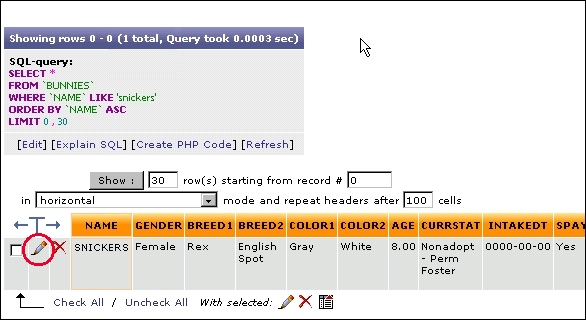
| 2. When you locate the record you want, click on the little pencil icon at the very front of the record. Do not click the red "X" next to it, that will delete the record.
| |
| |
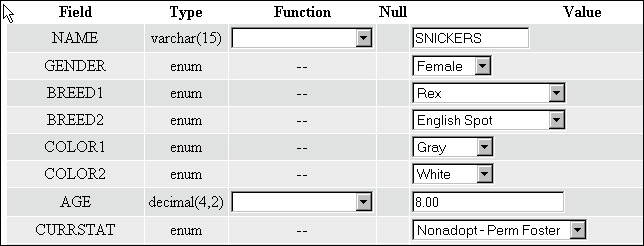
| 3. The next page will bring up the existing fields for the database record and will allow you to change them. Some fields are freeform text which will accept just about anything while other fields allow only selections from the accompanying dropdown box in the "Values" column. Some are "date" fields which require dates to be in "YYYY-MM-DD" format. To view the help page which gives detailed information of the fields and the kind of information they will accept, click here. When you have made your changes click the GO button. If you change your mind and decide not the update the record, simply click the BACK button on your browser or click another command from the menu bar at the top of the page. Your changes will not be saved until you click the GO button.
| |
| |
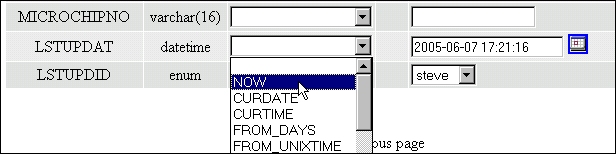
| SPECIAL NOTE: For the LSTUPDAT (Last Update Day and Time) field, always select "NOW" from the dropdown box in the "Functions" column. See below:
| |
|
 To return to the main database help page click here.
